How to Submit an Annual Check-In
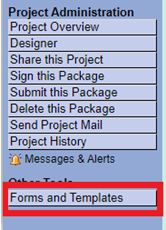
Step 2
Using the dropdown menu at the top of this screen, select USA IRB - Documents for Researchers:
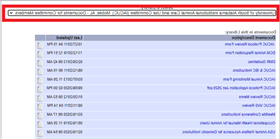
Step 3
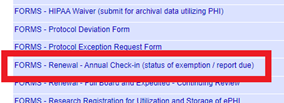
Locate and click to download the Annual Check- In form. This is titled “FORMS – Renewal – Annual Check-In (status of exemption / report due)”:
Step 4
Complete and save the Annual Check-In form to your computer. Once this has been saved, navigate to My Projects in IRBNet:
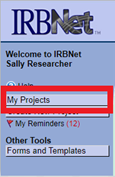
Step 5
Locate your project and click the title to open. Create a new package by selecting Create a New Package in the left navigational panel:
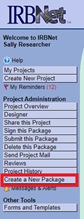
Step 6
This brings you to the Designer page. Upload your completed Annual Check-In form by selecting Attach New Document:
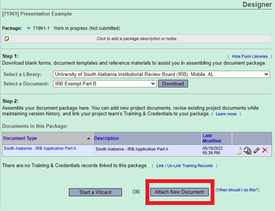
Step 7
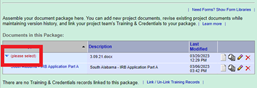
Select the Document Type as Continuing Review / Progress Report:
Note: At this time, your new package remains a “work in progress” and has not been officially submitted for review. You must follow Step 8 for the IRB office to be alerted of your check-in.
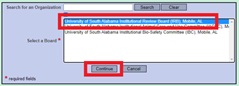
Select Submit this Package on the left navigational panel. Be sure to highlight USA IRB and select Continue:
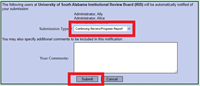
Choose “Continuing Review/Progress Report” as your Submission Type and select Submit: